TL;DR
Most HubSpot migrations move contacts and companies but leave email history behind in Gmail, Outlook, or another mailbox. The result: sales reps opening contacts with no conversation history on the first call after the migration. A platform-level backfill restores that history as native HubSpot email engagements, associated to the right contacts and companies, without manual work.
Why Email History Disappears in a HubSpot Migration
When a team migrates to HubSpot, the standard tooling handles structured records well. Contacts, companies, deals, and notes transfer cleanly through CSV imports or migration tools. Email history is different.
Email lives in mailboxes, not in the source CRM's export file. A Salesforce-to-HubSpot migration exports contact data from Salesforce, not from the Gmail or Outlook inboxes your sales reps used to send messages. Unless a separate, deliberate step exists to backfill that inbox data, the conversations stay locked in the mailbox.
The same problem appears when a company builds a new HubSpot portal for an acquired team, or when a portal gets rebuilt from scratch. The contacts come across. The years of email threads that existed before the migration date do not.
HubSpot's native connected inbox feature captures emails going forward, from the moment of connection. It does not reach back into the past. That gap is the problem.
What the Gap Actually Costs
The cost is felt on the first sales call after go-live. A rep opens the contact record, sees a blank activity timeline, and asks a question that the previous rep answered six months ago. The customer notices. The rep loses credibility. Trust dips before a single new conversation has started.
For customer success teams, the gap is worse: a CSM inheriting an account with no email history has no visibility into what was promised, what was flagged as a risk, or what tone the relationship had. They start from zero.
For CRM admins and RevOps leads running the migration, this becomes a support ticket backlog on day one, with reps asking where all the history went.
What Doesn't Work
Manual forwarding. Asking reps to forward historical emails one by one into HubSpot creates noise, drops threading, and never actually happens. A rep with 500 historical conversations is not forwarding 500 emails.
Asking reps to BCC going forward. This captures new emails but does nothing for the years of history that already exists.
Copy-pasting into notes. Loses email metadata, destroys searchability, and is not realistic for anything beyond a handful of records.
Re-connecting the inbox. HubSpot's connected inbox captures emails from the connection date forward. It has no mechanism to reach back into past conversations.
How a Platform-Level Backfill Works
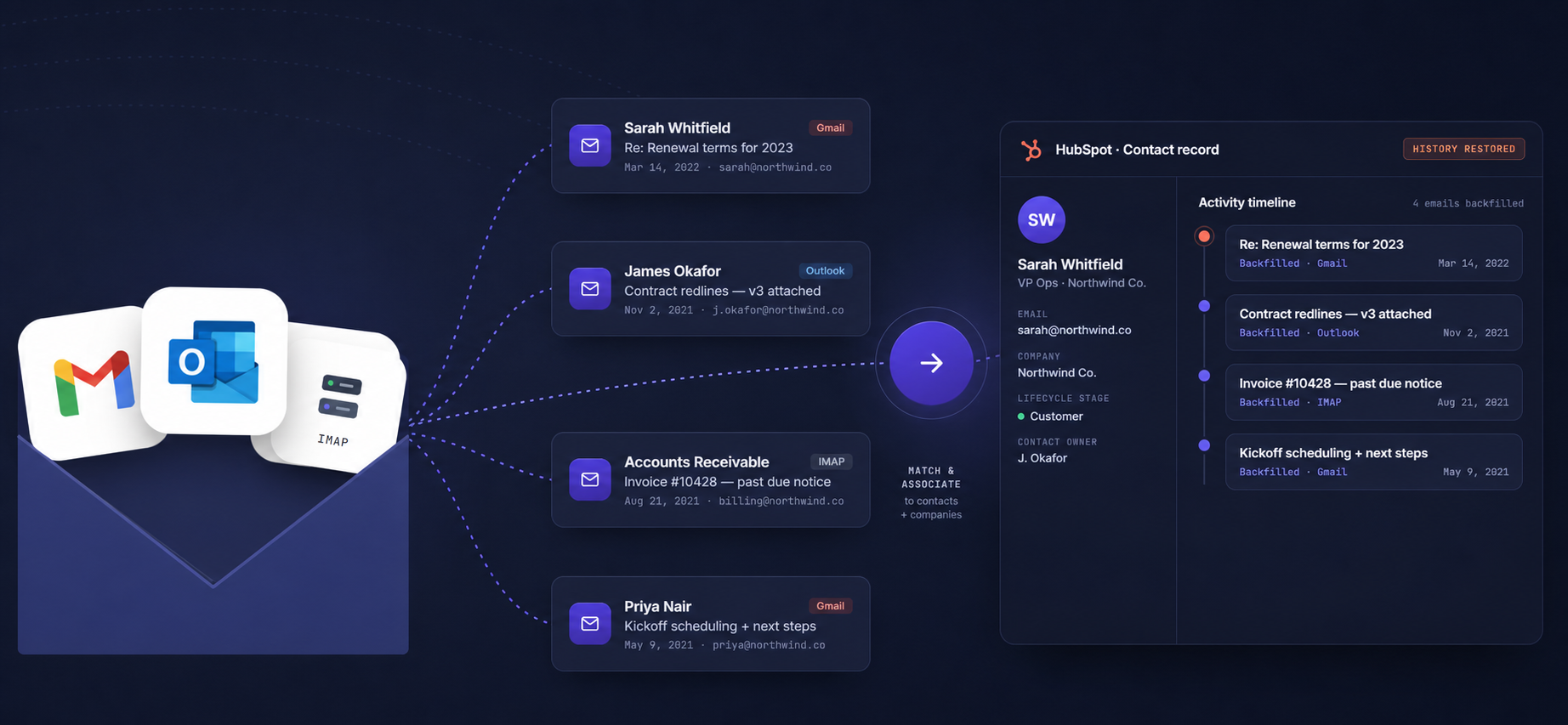
A platform-level backfill connects directly to the source mailbox (Gmail, Outlook, or an IMAP mailbox like Yahoo, iCloud, or Zoho Mail), reads the conversation history, matches each email to the right contact in HubSpot, and writes it as a native HubSpot email engagement on the contact and company timeline.
The key word is native. The result is not an attachment, a note, or a custom object. It's the same kind of email activity that HubSpot's own connected inbox creates: searchable, filterable, reportable, and visible on the contact timeline exactly as if it had always been there.
- Deduplication by message ID. Each email has a unique source message ID. A backfill tool that tracks these can safely re-run imports without creating duplicates.
- Dry runs before any write. Previewing what will be imported before spending a credit or writing to HubSpot lets admins catch bad associations or noisy senders before they land in production.
Step-by-Step: Backfilling with Historic Email Importer for HubSpot
Historic Email Importer for HubSpot runs a four-step process from mailbox connection to restored timeline.
Step 1: Connect the mailbox
Connect Gmail or Microsoft Outlook with OAuth (read-only scopes). Or connect any IMAP mailbox, including Yahoo, iCloud, Zoho Mail, and Fastmail, with an app password. The tool never sends mail on your behalf. Multiple inboxes connect at the same time, including multiple accounts of the same provider.
Step 2: Choose the scope
Set the date range, the contact set, and the import limit. Running a small test job first is the right approach before a full multi-year backfill. The tool supports both the inbox and the Sent folder, reaching back as far as the mailbox holds.
Step 3: Preview the import
Run a dry run. This is always free and shows exactly what would land in HubSpot before any write happens: which contacts will be created or updated, which emails match, which senders will be skipped. Sender rules filter no-reply addresses, promotional email, and system notifications by default, so credits go to real human conversations.
Step 4: Run the backfill
The importer writes native HubSpot email engagements to the correct contact and company timelines. For large multi-year backfills, auto-continue chains runs automatically so the job completes without manual restarts.
Credits never expire. Dry runs are always free. The import can pause and resume without losing progress.
What Gets Imported
- Email activities on the contact timeline, searchable and filterable like any other HubSpot email
- Contact and company associations, auto-created where they don't exist yet, so threads land on the right records
- Duplicate prevention via source message IDs: re-running an import safely skips what's already there
- Sender rules: no-reply, promotional, and system addresses are skipped by default, with custom allow/block lists available
Who This Is For
- Teams migrating to HubSpot from Salesforce, Zoho, Dynamics, or any other CRM
- Teams building a new HubSpot portal for an acquired company or new business unit
- Teams who already migrated but realized after go-live that the history didn't come across
If your team runs ConnectWise PSA alongside HubSpot and you need recurring revenue (MRR, ARR, TCV) synced natively into HubSpot deals, that's a separate problem with a separate solution: App-Sync PSA Bridge for HubSpot.
A migration that skips the email history is a migration that forgot the relationship. The fix is a one-time, scoped backfill that restores the full picture before the first sales call after go-live.
Start a free trial of Historic Email Importer for HubSpot. Dry runs are always free.